

Windows 11 is known for amazing features like modern UI with centred Start Menu, improved multitasking, Snap Layouts, Widgets, enhanced gaming, security, etc. However, you may sometimes need to reset your Windows 11 PC to restore its stability and enhance its speed. Many users hesitate to reset their computers because they fear losing important files such as photos, documents, videos, and work-related data.
Fortunately, Windows 11 offers an in-built reset feature that you can use to reinstall your device OS while keeping your personal files intact. This option is especially useful when troubleshooting major software issues without performing a complete format. In this guide, we’ll explore quick steps on how to reset a Windows 11 PC without losing data, the precautions you should take before resetting, and what to do if files go missing after the process.
What Does Resetting Windows 11 Mean?
Resetting Windows 11 reinstalls the operating system to fix software-related issues. Windows gives two options during the reset process:
- Keep My Files – Reinstalls Windows while preserving personal files.
- Remove Everything – Deletes all files, apps, and settings for a clean start.
The “Keep My Files” option is the safest choice if you want to repair Windows without losing your personal data.
When Should You Reset Windows 11 PC?
Resetting your Windows 11 device helps in fixing several issues, some of which are as follows:
- Your system becomes extremely slow.
- Frequent Blue Screen of Death (BSOD) errors occur.
- Malware or viruses have damaged system files.
- Startup issues prevent normal functioning.
- Performance problems persist despite troubleshooting.
- System settings are corrupted.
Resetting can help you resolve these issues faster than manually diagnosing them.
Pre-requisites for Resetting Windows 11 Without Data Loss
Although Windows 11’s “Keep My Files” option is designed to preserve your data, you should still follow the preventive measures below to minimise the risk of data loss:
- Backup Important Files: Create regular backups of your important files, such as photos, videos, documents, etc., on an external drive, USB device, or cloud storage service.
- Check All Installed Apps: The reset process removes most third-party applications. Create a list of important software so you can reinstall it later.
- Keep Your Microsoft Account Credentials Ready: You may need to sign in again after resetting Windows. Ensure you remember your Microsoft account email and password for hassle-free data restoration.
- Maintain Uninterrupted Power Supply: If you are using a laptop, keep it plugged into a charger throughout the reset process to avoid interruptions.
Quick Steps to Reset Windows 11 PC Without Losing Data
In this section, we’ll explore quick steps to reset your Windows 11 PC using the “Keep My Files” option, which performs reinstalling Windows without losing your device data:
Step 1: Press the Windows + I keys to launch the Settings app on your PC. Go to System, scroll down and select Recovery.
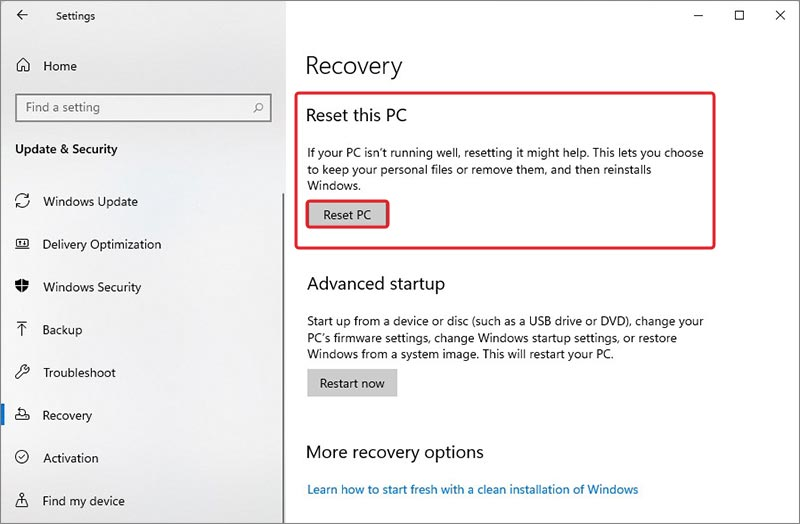
Step 2: From the Recovery options, find Reset this PC and then tap the “Reset PC” button.
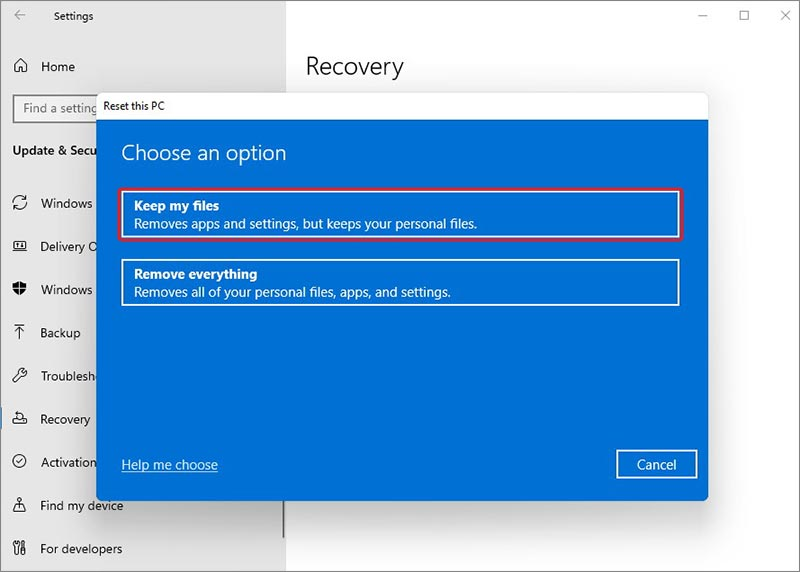
Step 3: Here, you will see two options – Keep my files and Remove everything. Select the Keep My Files option to preserve your personal files while reinstalling Windows.
Step 4: Now, choose how you want to reinstall the operating system: either Cloud Download or Local Reinstall.
Step 5: Review the reset settings from the “Additional Settings” window and click Next to continue.
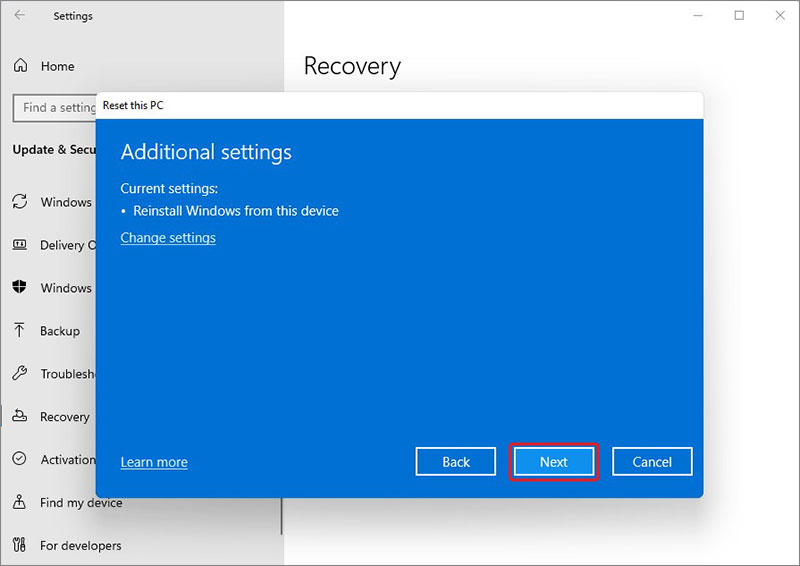
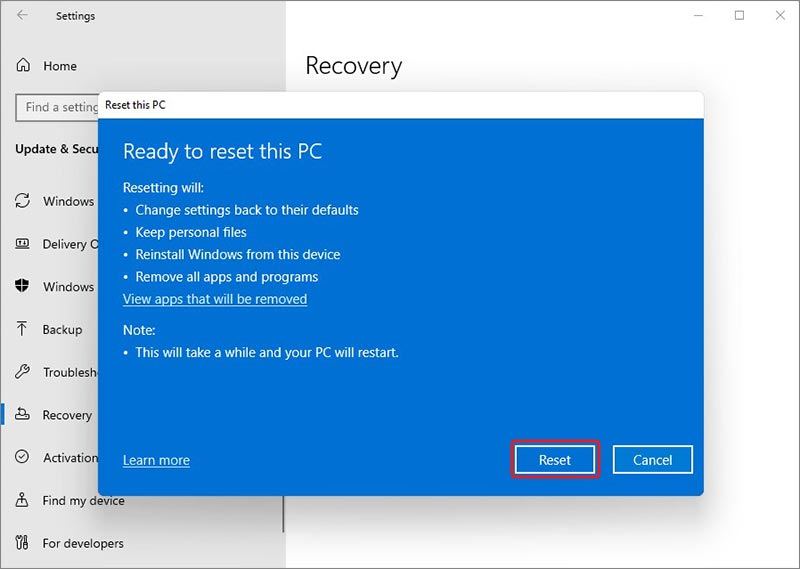
Step 6: Click Reset and wait till the process completes. This may take anywhere from 20 minutes to several hours, depending on your PC’s speed and reinstallation method.
Lost Data After Resetting Windows 11? Recover it easily!
Instances may happen when you lose important files from your Windows 11 PC after resetting it, even with the “Keep my files” option. If you ever find your files lost or deleted, go with the previously created backups or third-party free data recovery software to restore them. Tools like Stellar Data Recovery Free are especially designed to help you restore files lost or deleted due to accidental deletion, formatting, system failures, and many other reasons. You can use this tool to restore deleted files of various types, including photos, videos, documents, emails, etc.
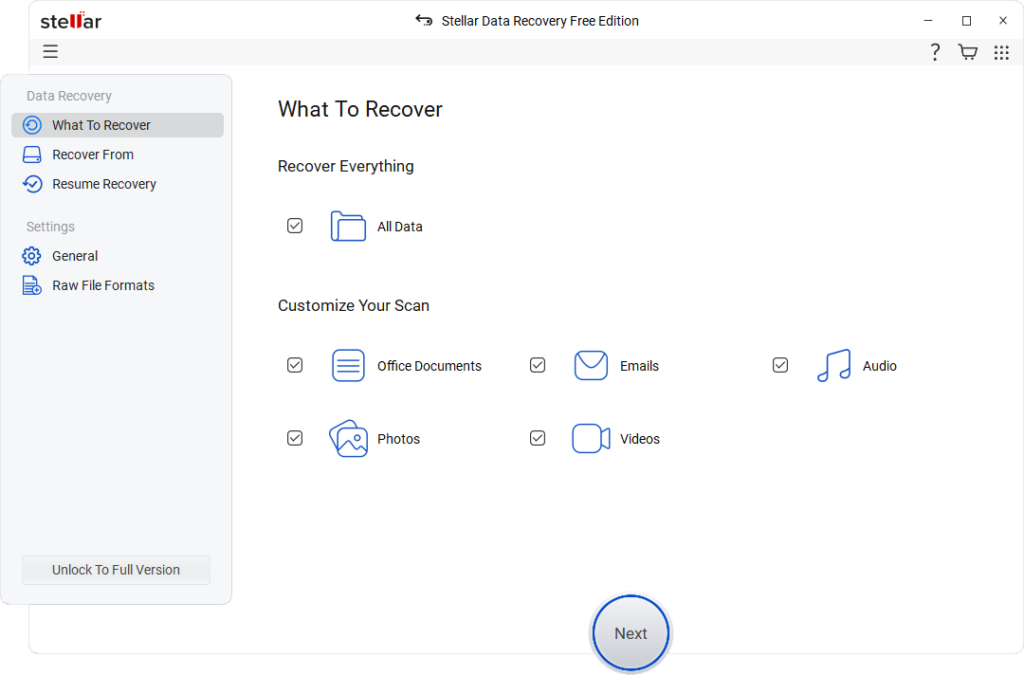
The Stellar Data Recovery Free software can help you restore files deleted from SD cards, hard drives, USB drives, and other internal and external storage media. The Free version lets you restore deleted files up to 1 GB for free, which is best for basic data recovery. However, you can upgrade to premium versions to restore deleted data of larger size.
Is Resetting Windows 11 PC Safe?
Yes, resetting Windows 11 is generally safe when performed carefully using the adequate built-in recovery tools. When you reset your PC, it helps in:
- Improving system performance
- Removing corrupted files
- Faster startup
- Improved stability
- Cleaner system environment
However, it is good practice to maintain backups of your important files before you proceed with system resetting.
Conclusion
Performing your system formatting without losing data may seem like a challenging task, but that’s not the case. Windows 11 offers an in-built “Keep My Files” feature that you can use to fix system issues while preserving important personal files. This feature simplifies the recovery process and helps restore Windows functionality without requiring a complete format.
Before starting the reset, always back up essential files, keep your login credentials ready, and ensure an uninterrupted power supply. After the reset, reinstall your applications, update drivers, and verify your files are intact. If any data goes missing unexpectedly, recovery solutions like Stellar Data Recovery Free may help restore lost files efficiently.
